Jump to a section:
1. Getting started with your Hub Classroom 2. Getting students set up on the Hub 3. How the Student Hub worksClassroom set up (sections 1 & 2)
Student Hub walkthrough (section 3)
1. Getting started with your Hub Classroom
You can access Classrooms through the Teacher Hub. When you do, you'll see this screen — set up a classroom for each class group you teach.
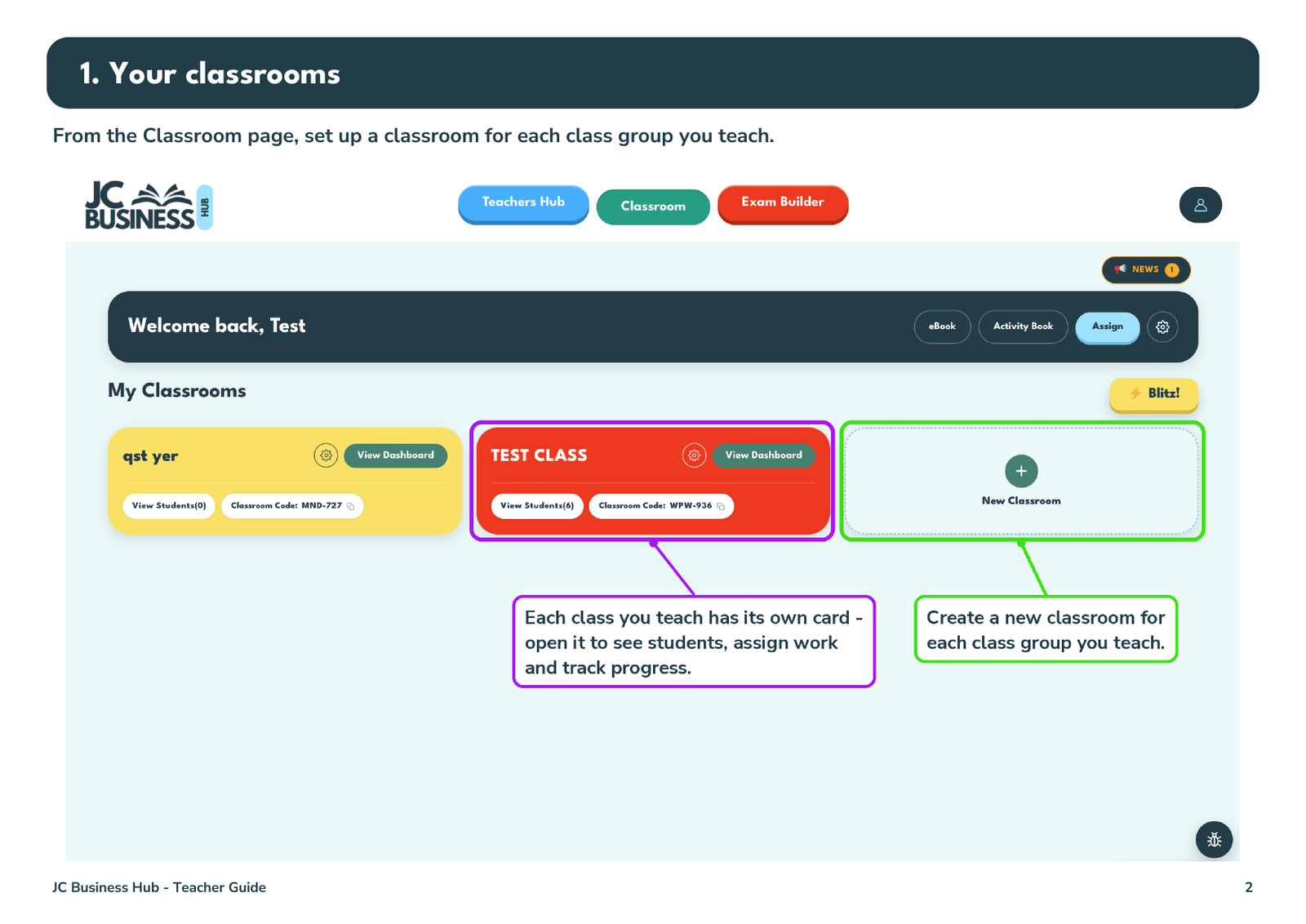
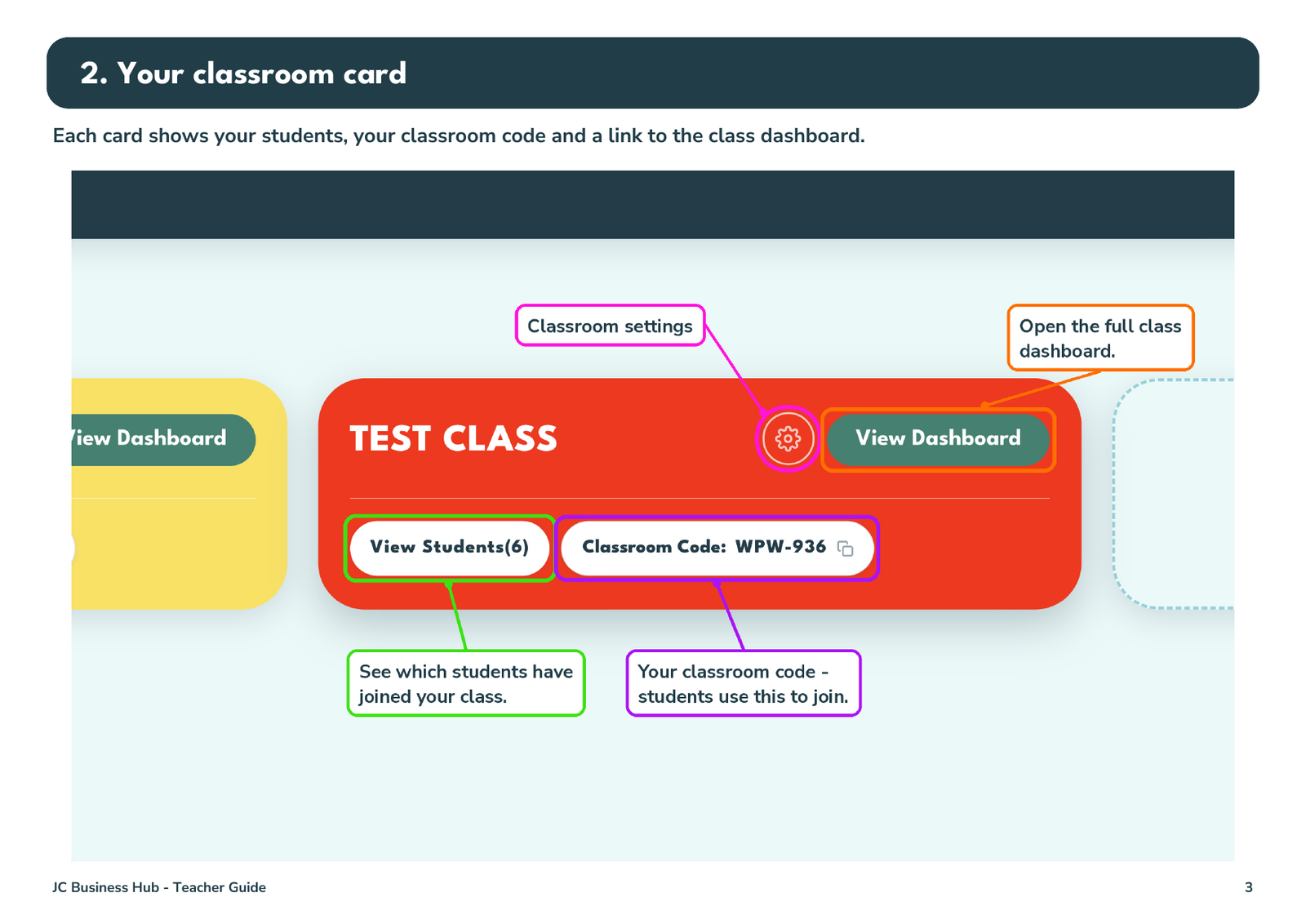
Each class has its own card. From here you can see who has joined, grab your classroom code, and open the full dashboard.
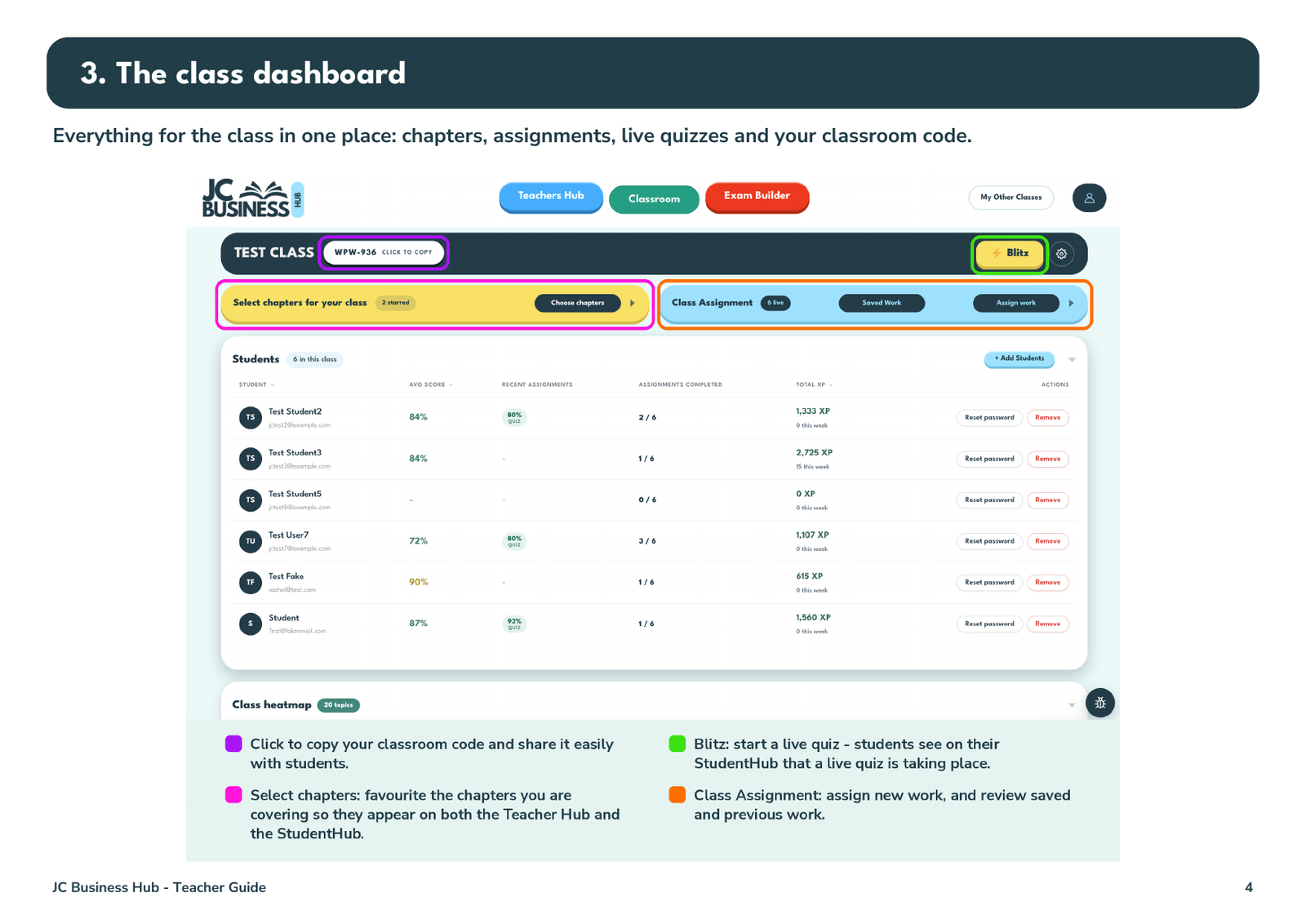
This is the class dashboard — everything for the class in one place. Copy your classroom code to share with students, star the chapters you're covering, assign work, and run a Blitz live quiz.
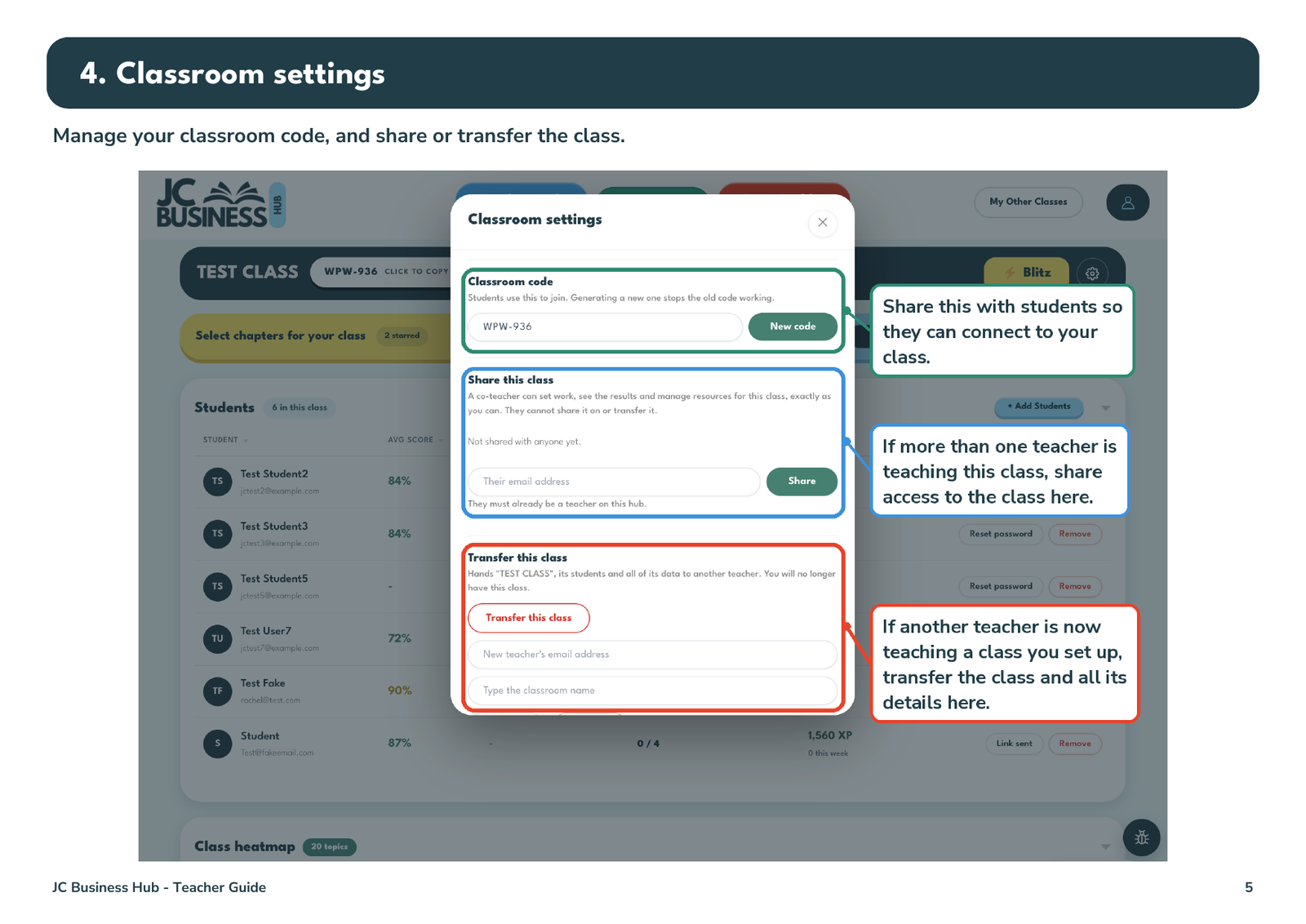
In classroom settings you can manage your classroom code, share the class with another teacher who also teaches it, or transfer the class entirely if someone else is taking it over.
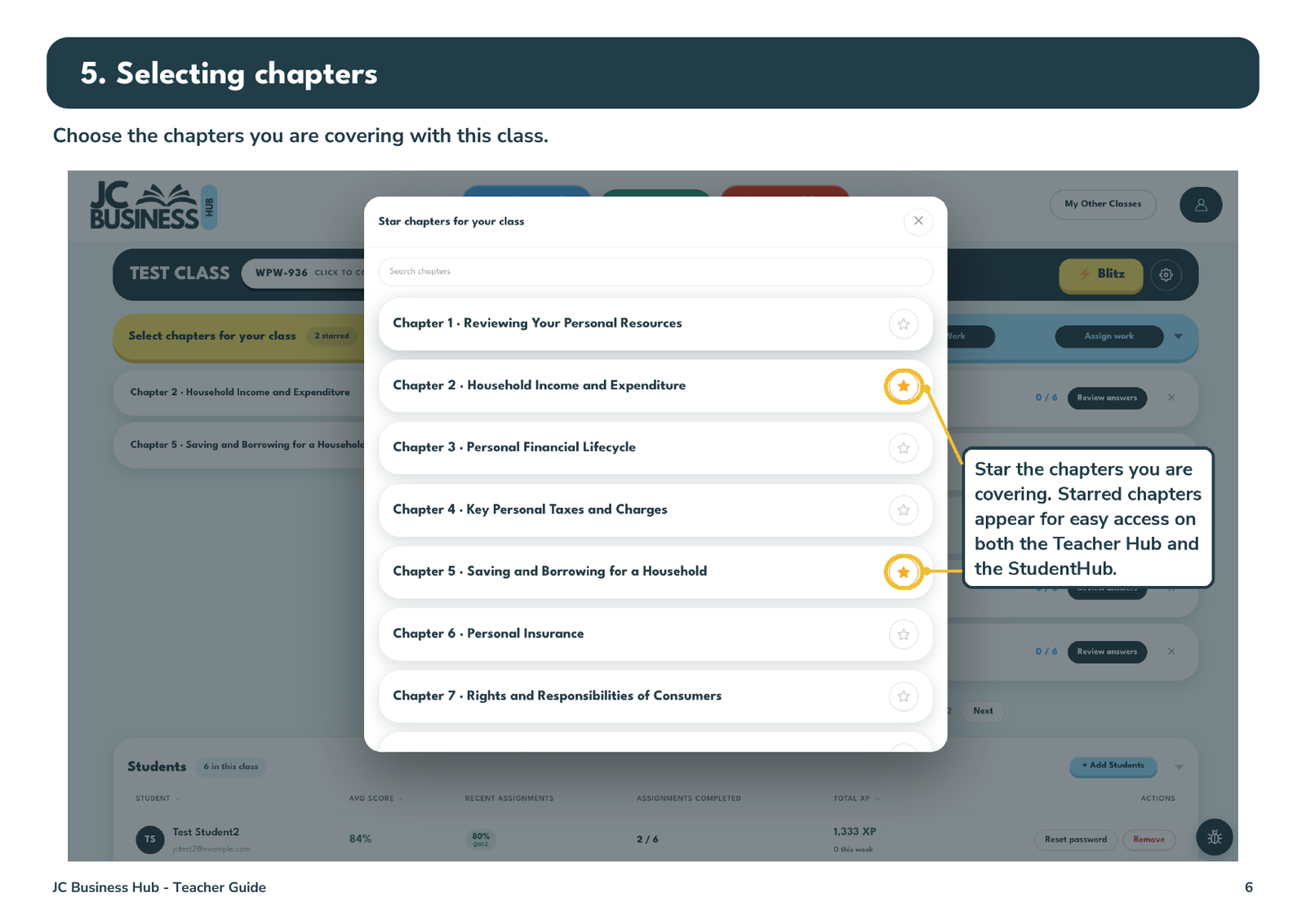
Star the chapters you're covering — starred chapters appear for easy access on both the Teacher Hub and the StudentHub.
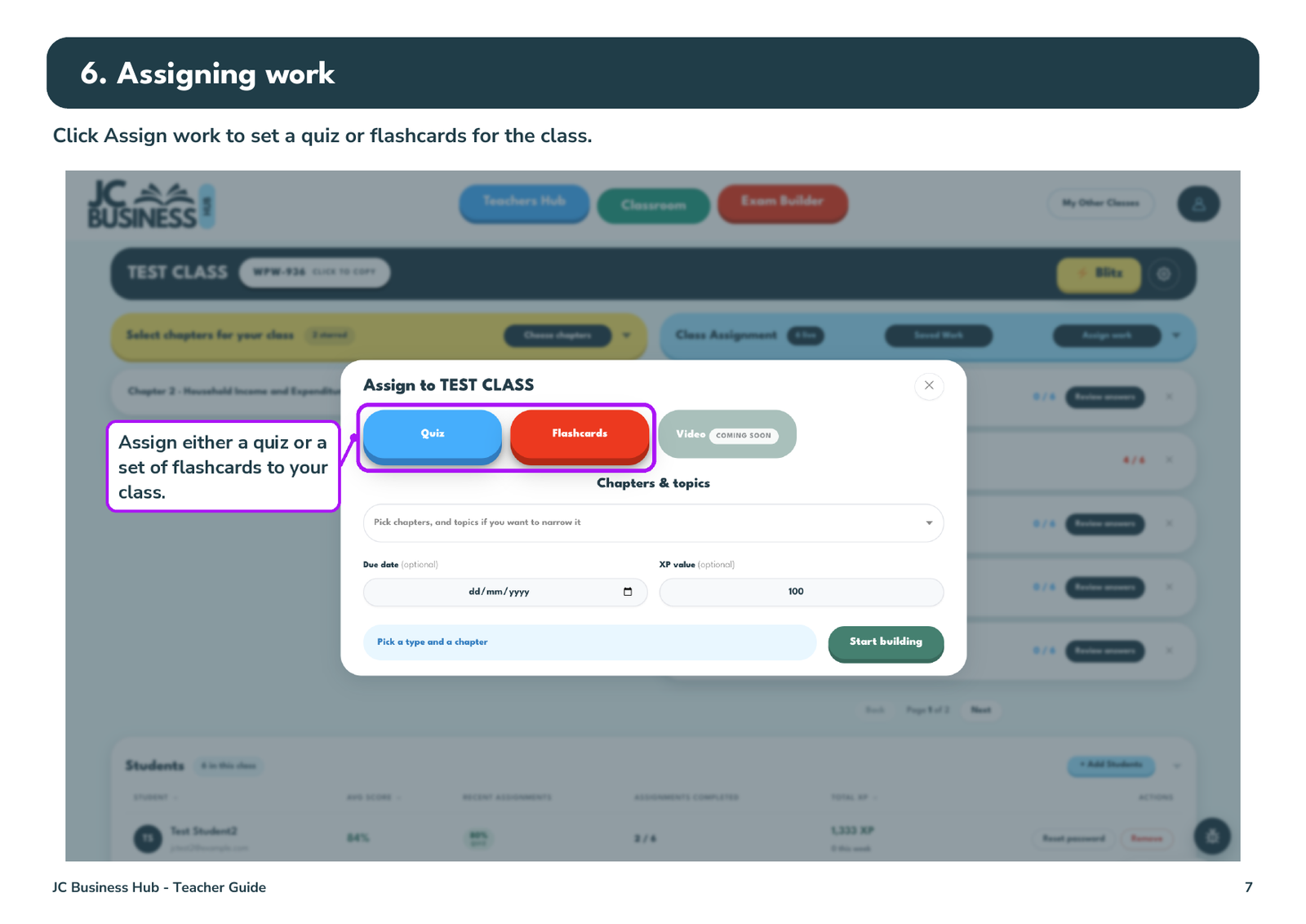
When you click Assign work, you can set either a quiz or flashcards for the class.
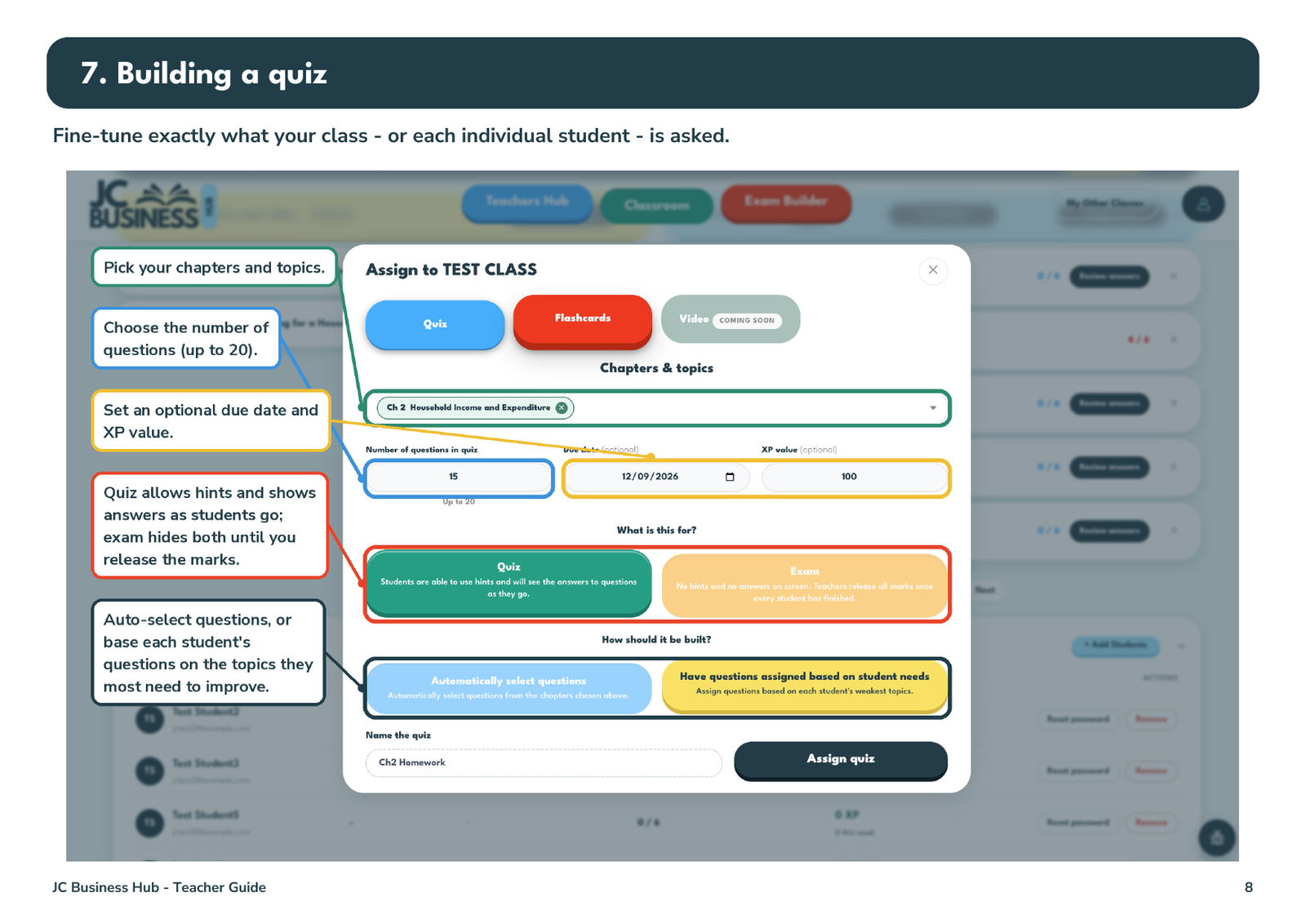
You can fine-tune exactly what's asked: pick chapters and topics, set the number of questions and a due date, choose quiz or exam mode, and either auto-select questions or have each student assigned questions based on the topics they most need to improve.
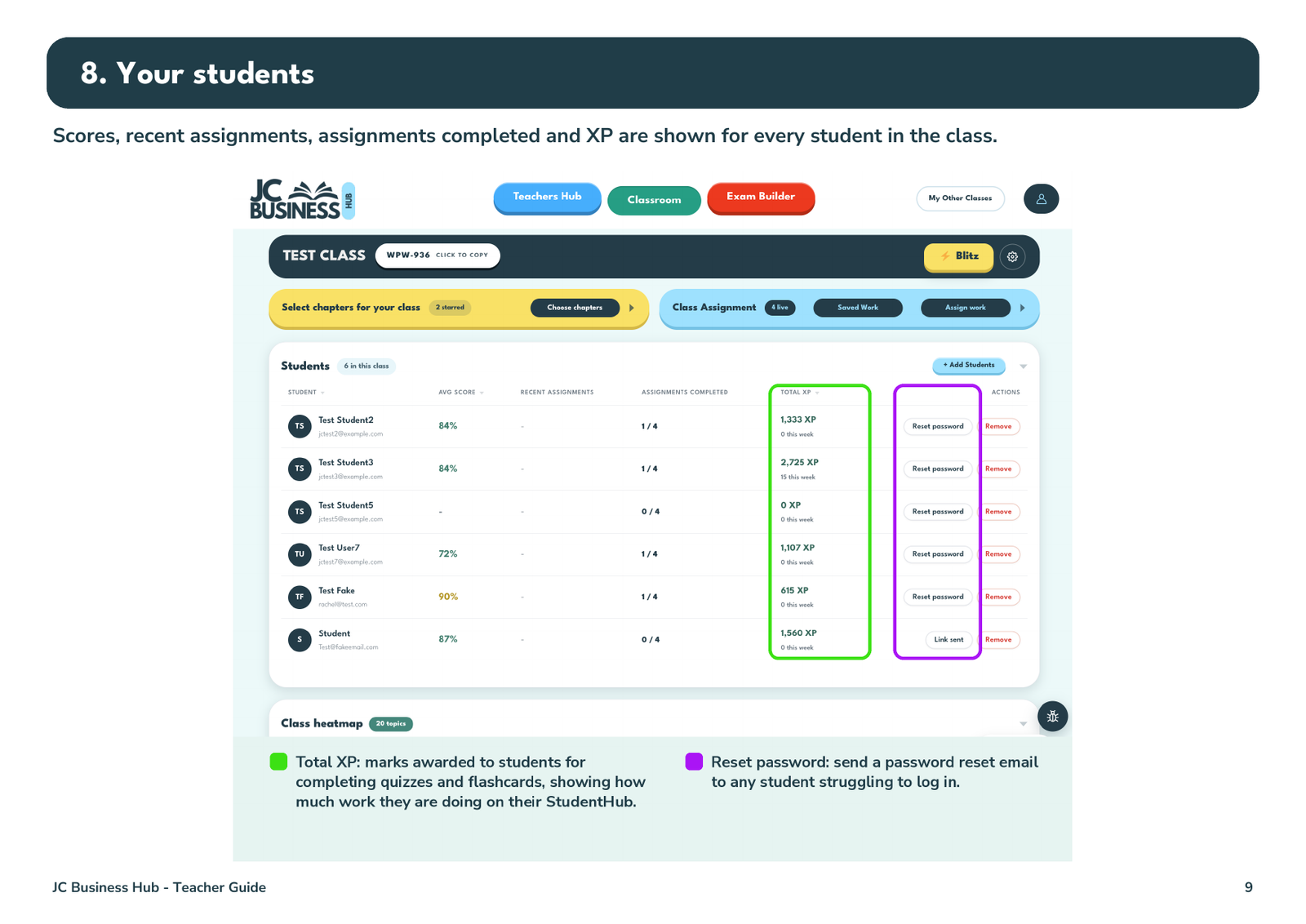
Your students' scores, recent assignments and XP are all shown here. XP shows how much work they're doing on their StudentHub, and you can send a password reset to anyone struggling to log in.
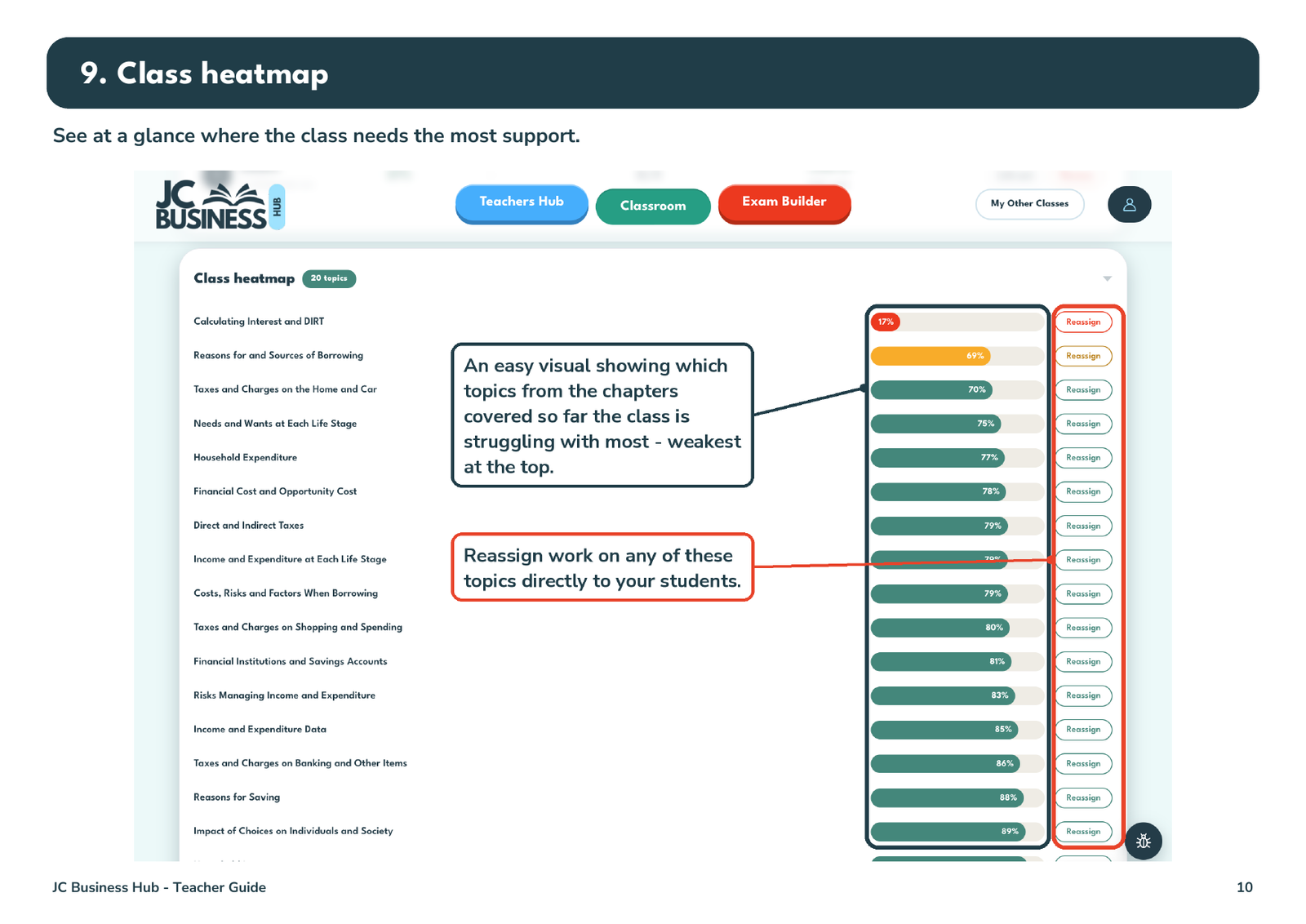
Finally, the class heatmap shows at a glance which topics the class is struggling with most, and you can reassign work on any topic directly from here.
2. Getting students set up on the Hub
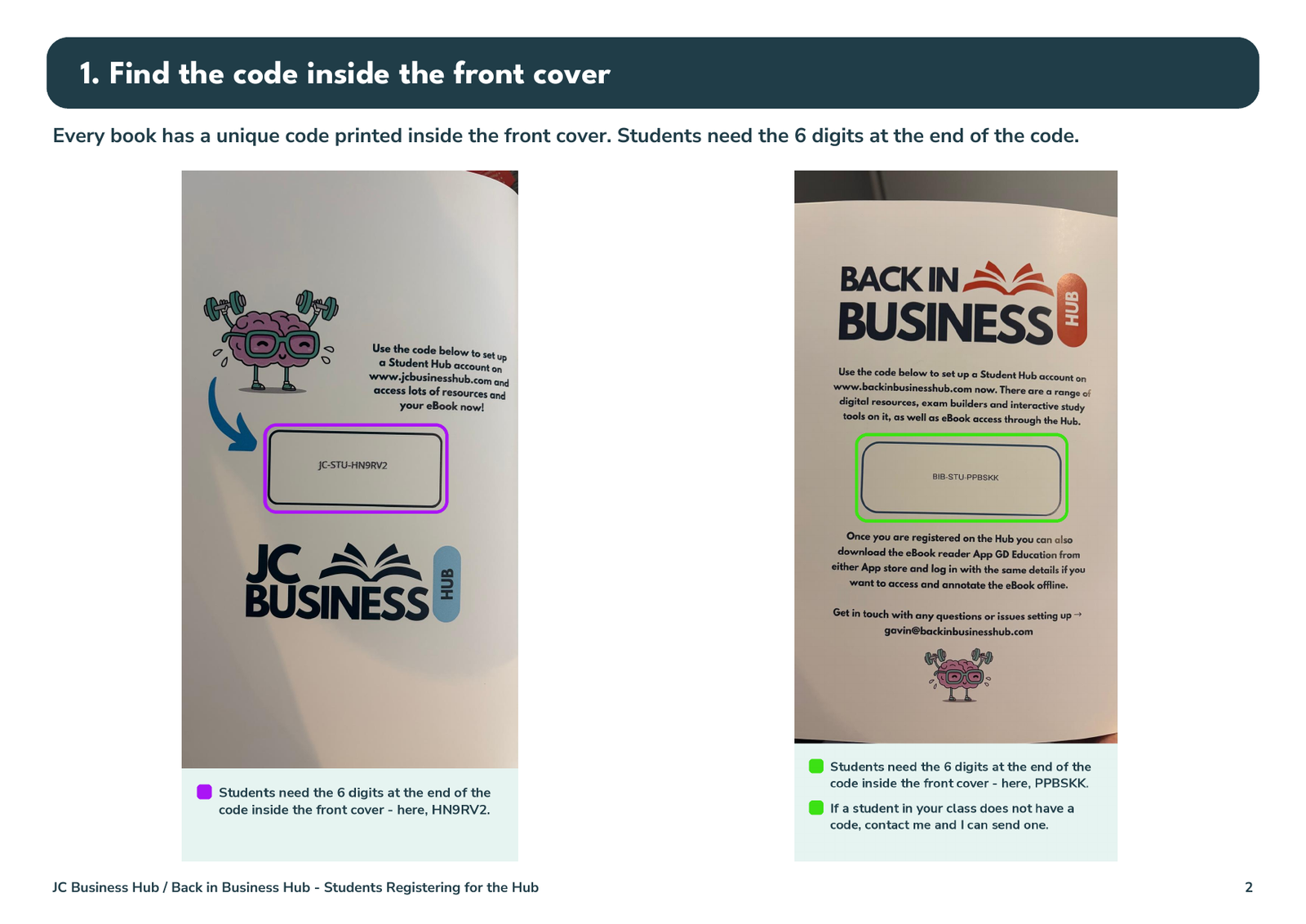
Every book has a unique code printed inside the front cover — students need the 6 digits at the end of the code. For Back in Business, if a student in your class doesn't have a code, contact me and I can send one.
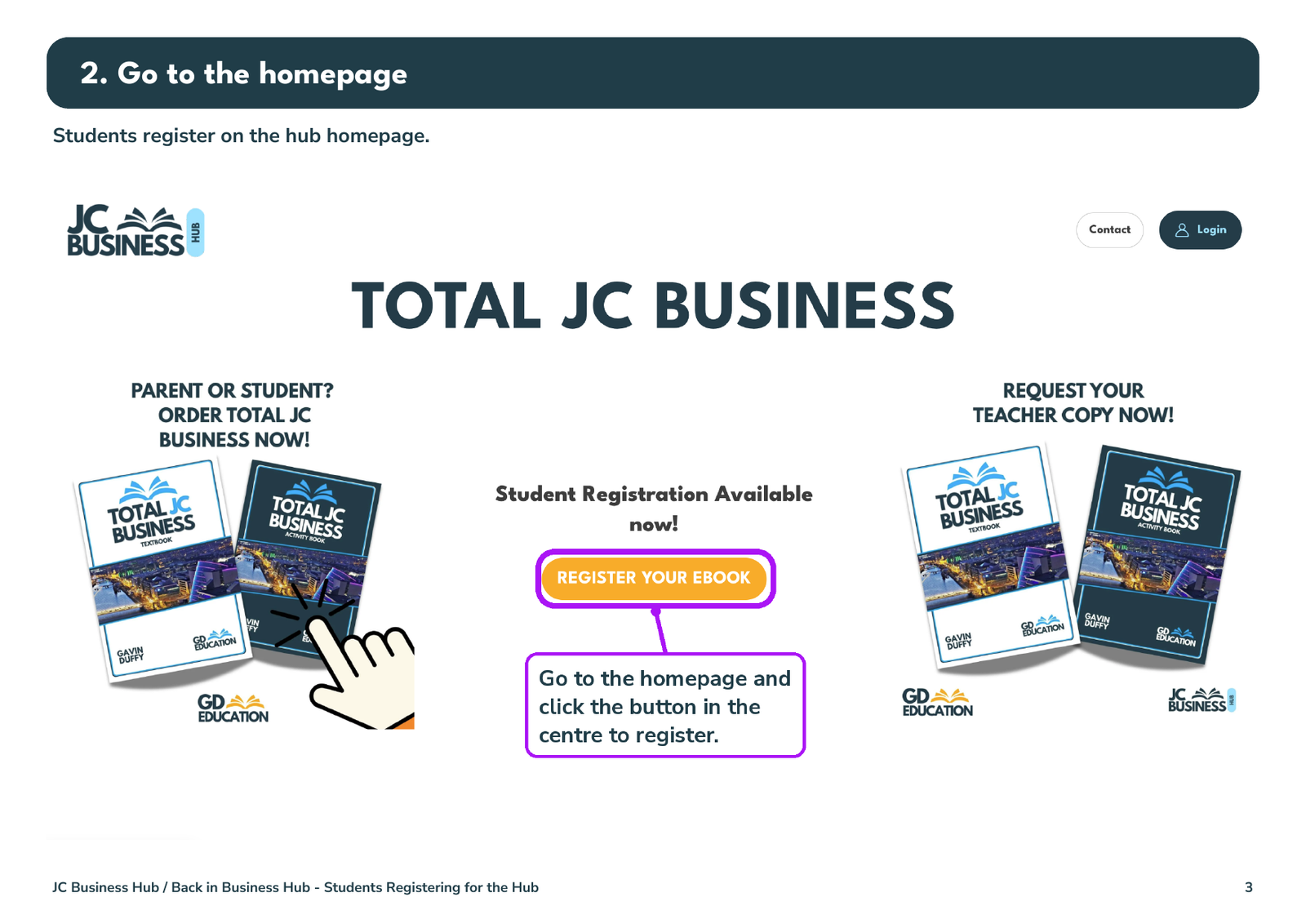
Students go to the homepage and click the button in the centre to register.
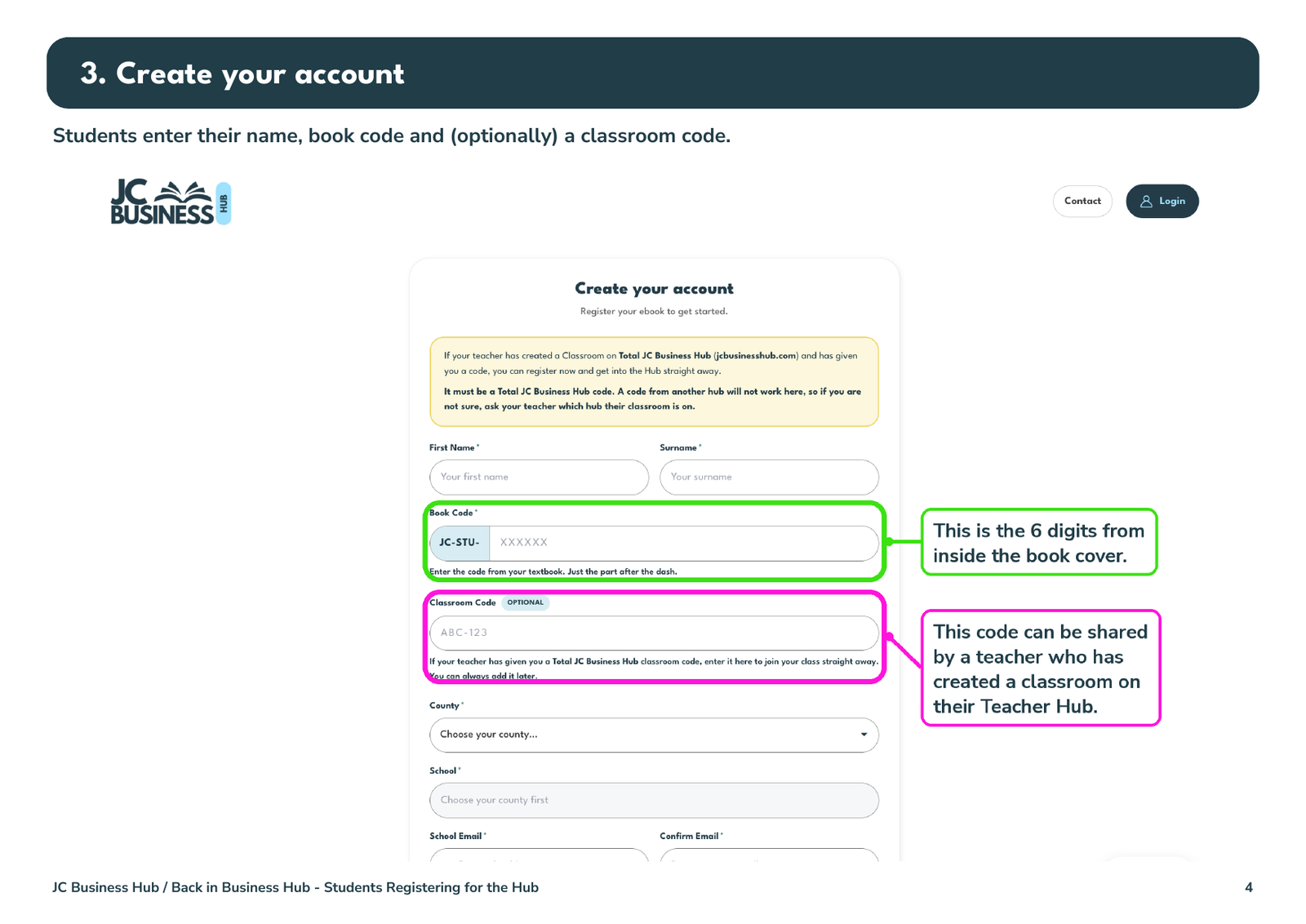
On the registration form, they enter the 6 digits from inside the book cover as their book code. If you've created a classroom on your Teacher Hub, give them your classroom code and they'll join your class straight away — they can also add it later.
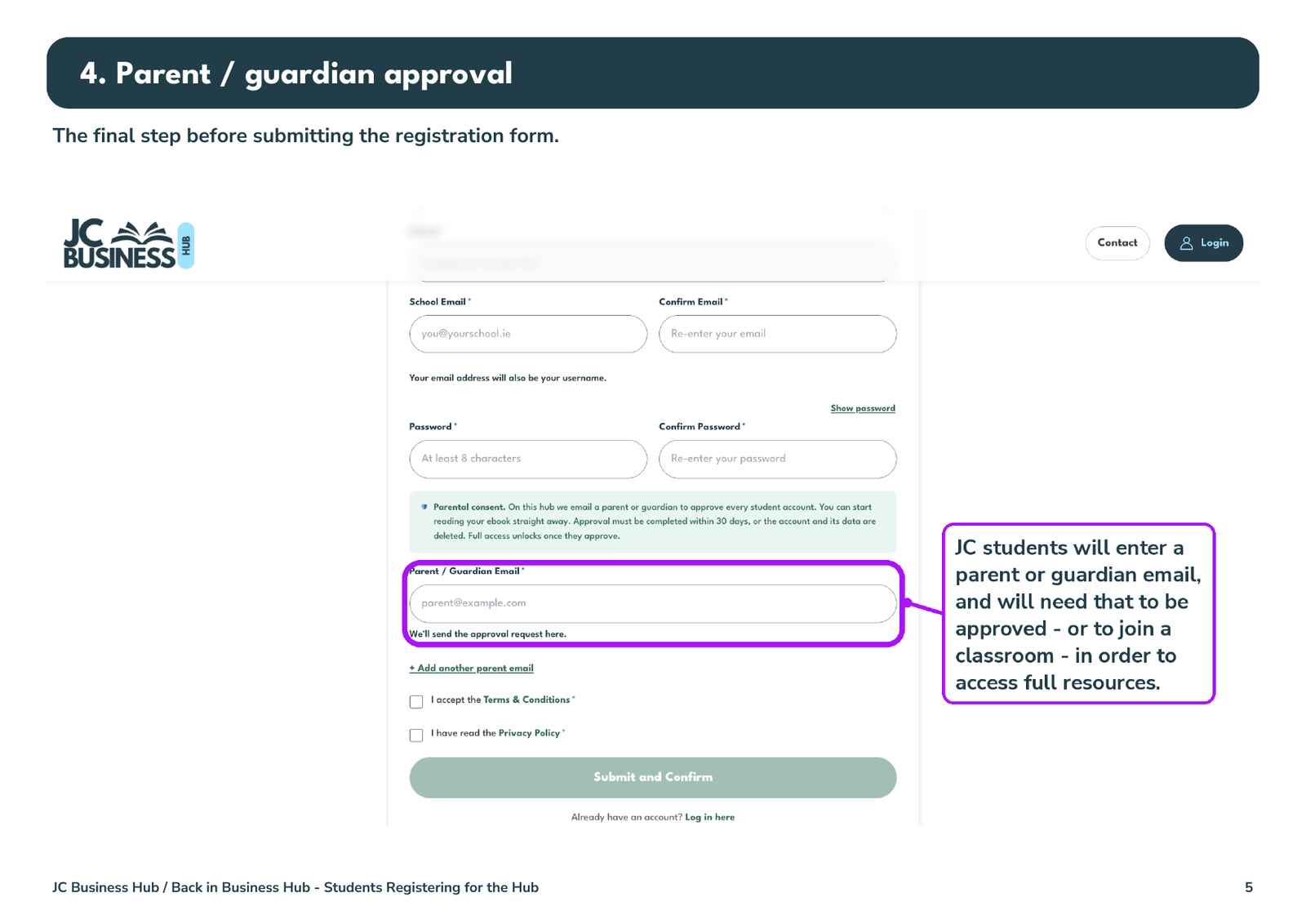
Junior Cycle students also enter a parent or guardian email. That approval — or joining a classroom — is needed for full access to resources.
3. How the Student Hub works
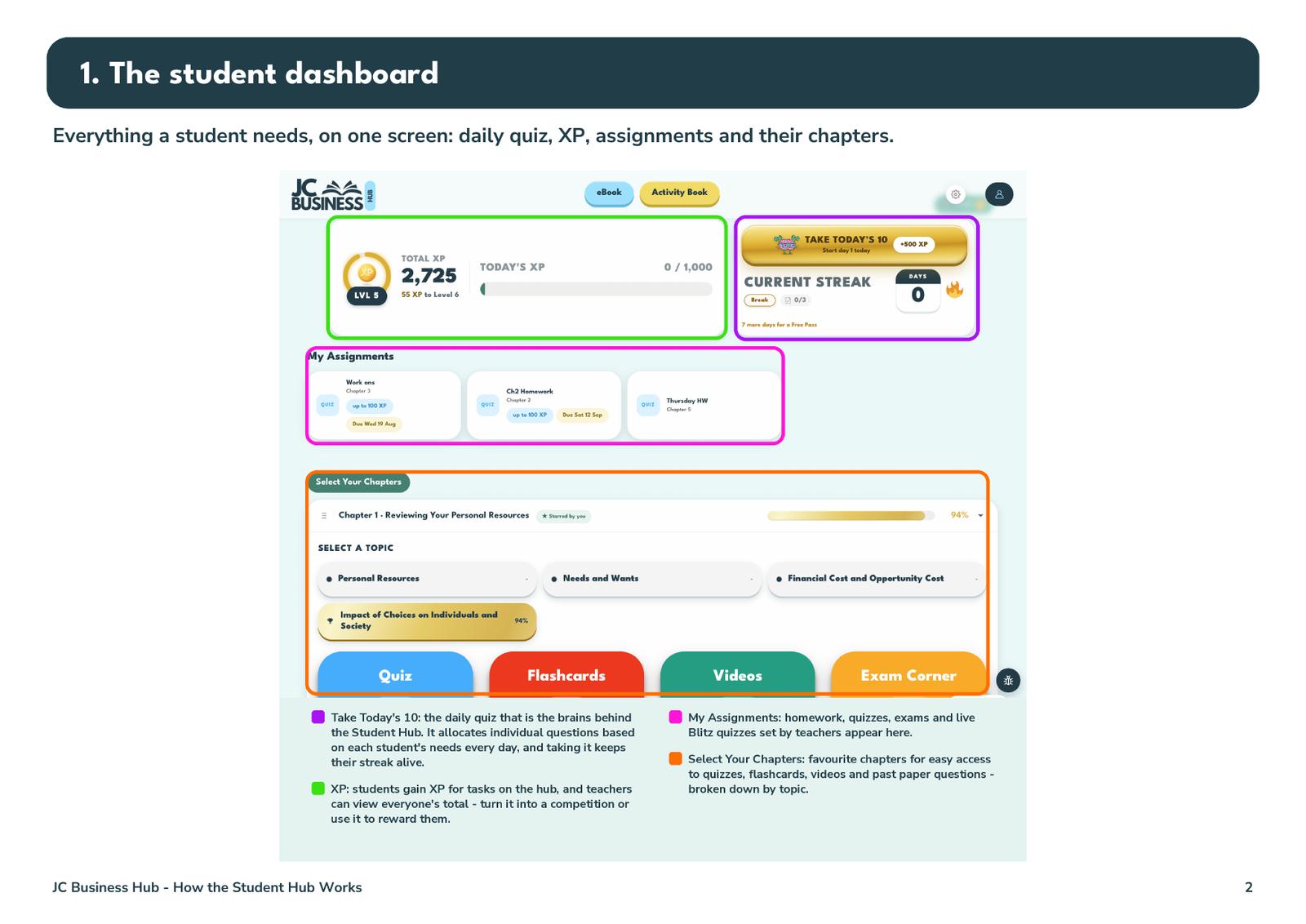
This is what students see when they log in — their daily quiz, XP, assignments and chapters all on one screen. Take Today's 10 is the brains behind the hub: it picks individual questions for each student every day based on what they need, and taking it keeps their streak alive.
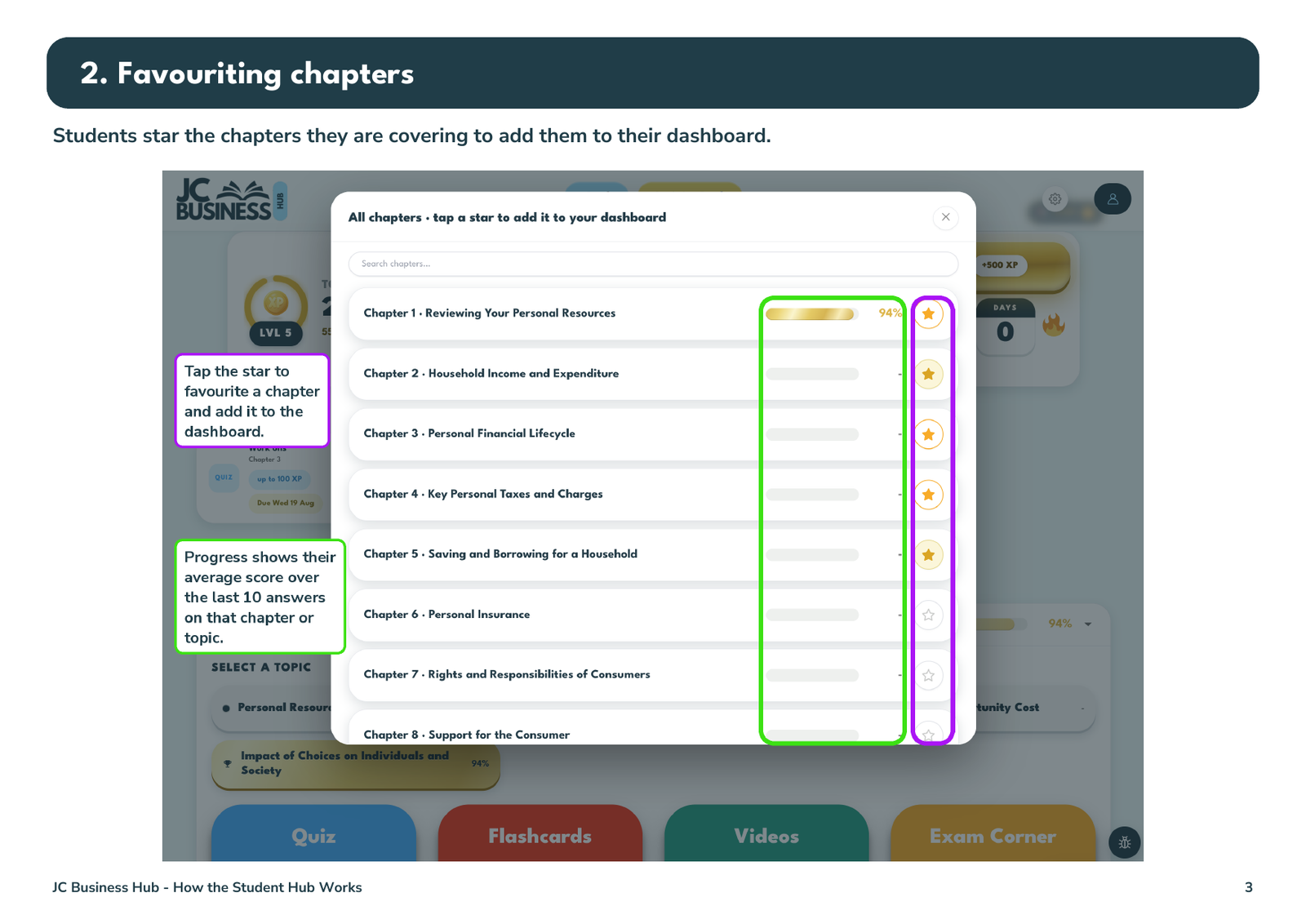
Students star the chapters they're covering to add them to their dashboard. The progress bar shows their average score over their last 10 answers on that chapter or topic.
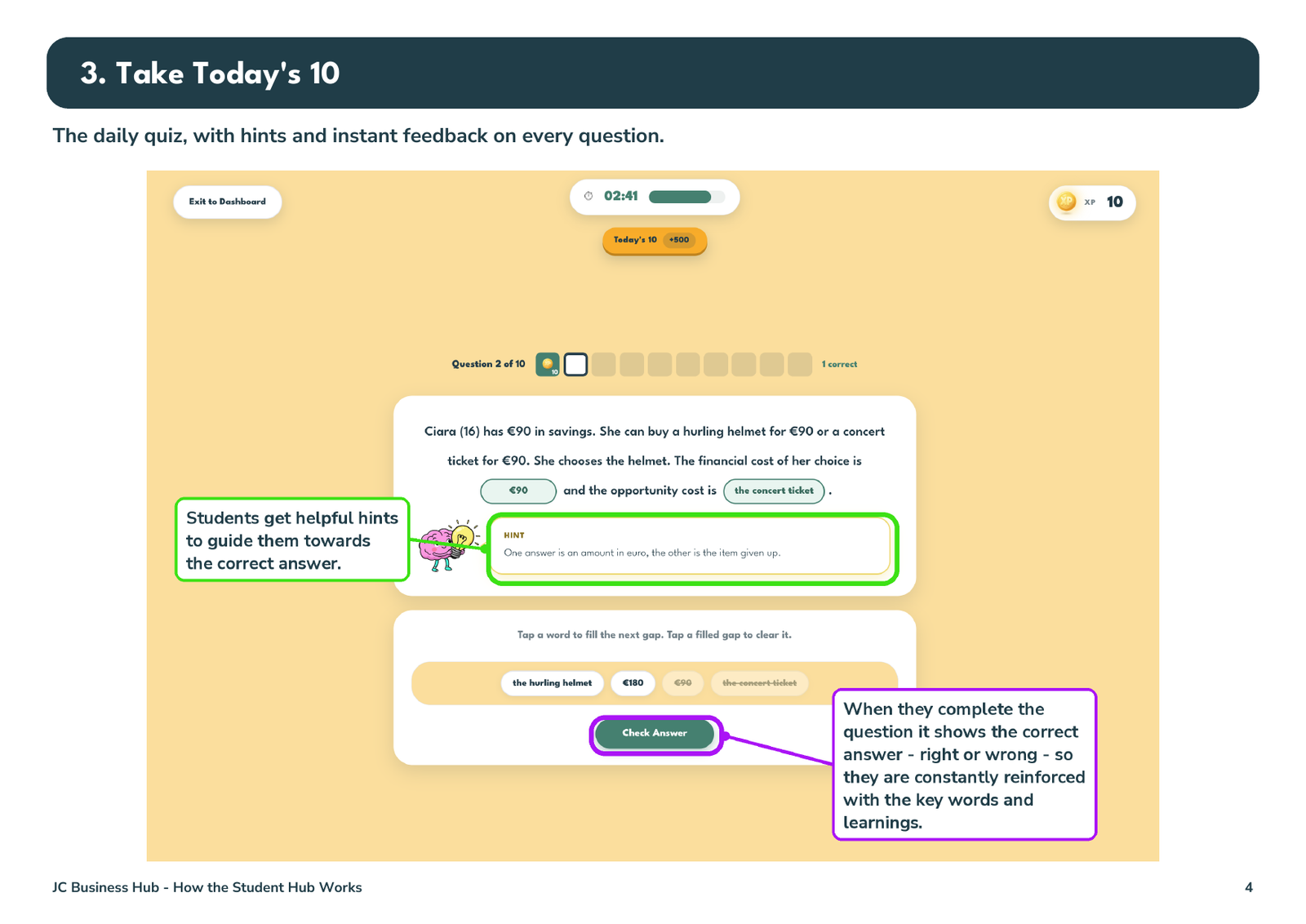
Here's a Take 10 question. Students can use hints to guide them towards the answer, and once they check it they're shown the correct answer either way — constant reinforcement of the key words and learnings.
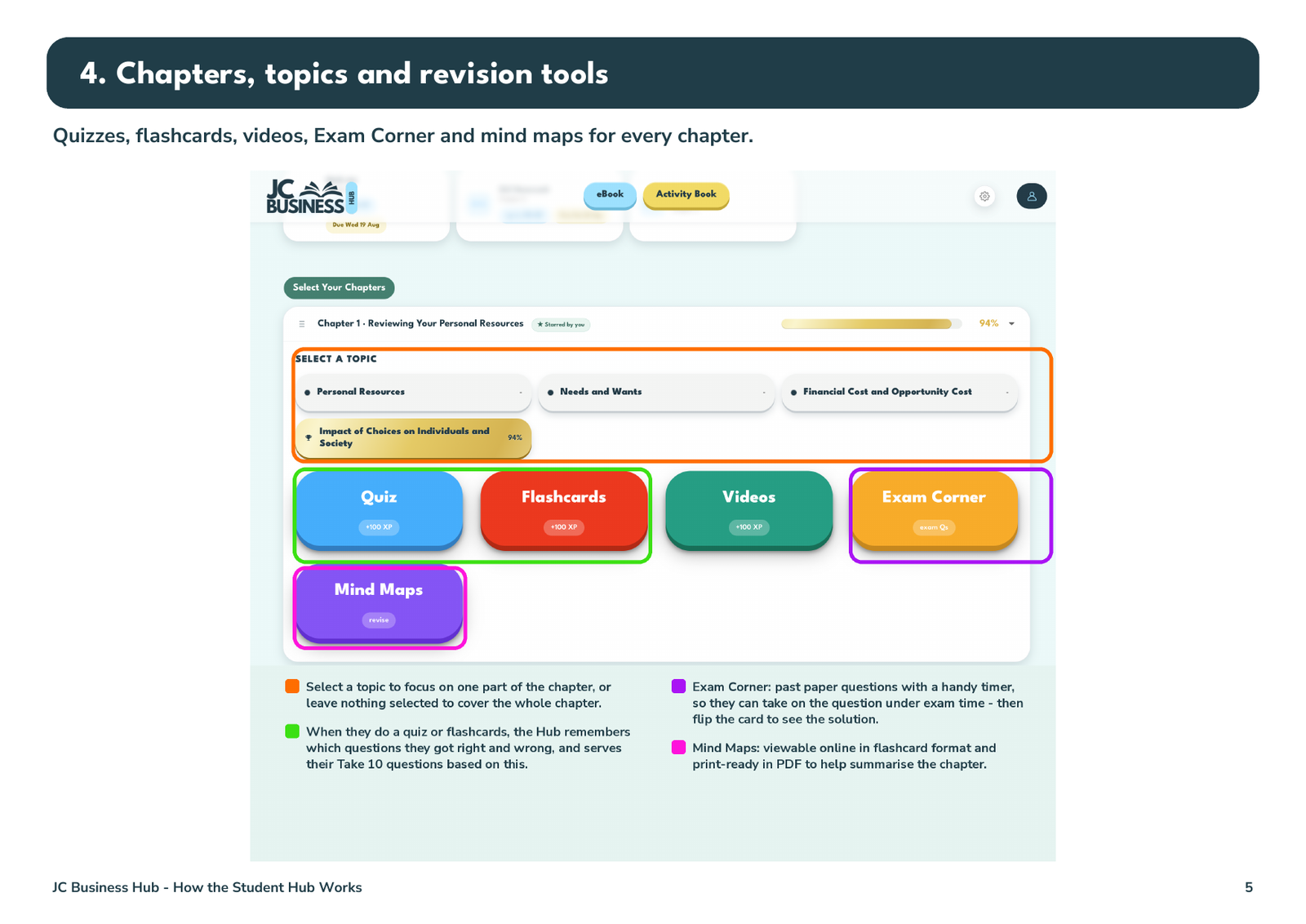
For each chapter, students can pick a topic to focus on one part, or leave nothing selected to cover the whole chapter. The Hub remembers what they got right and wrong in quizzes and flashcards and feeds their Take 10 from it. Exam Corner has past paper questions with a timer so they can attempt them under exam conditions and flip for the solution, and the mind maps are viewable online or print-ready as PDFs.